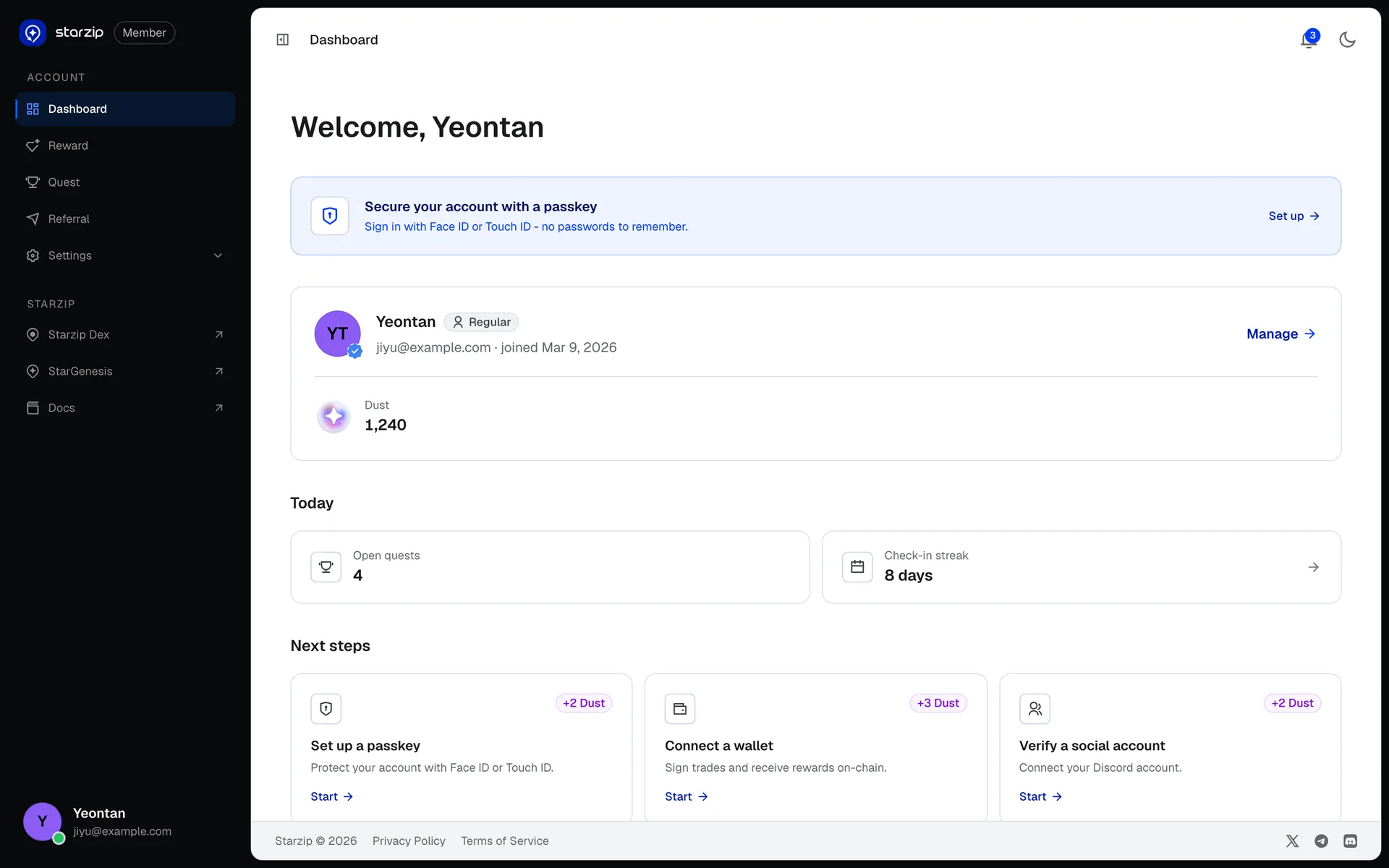
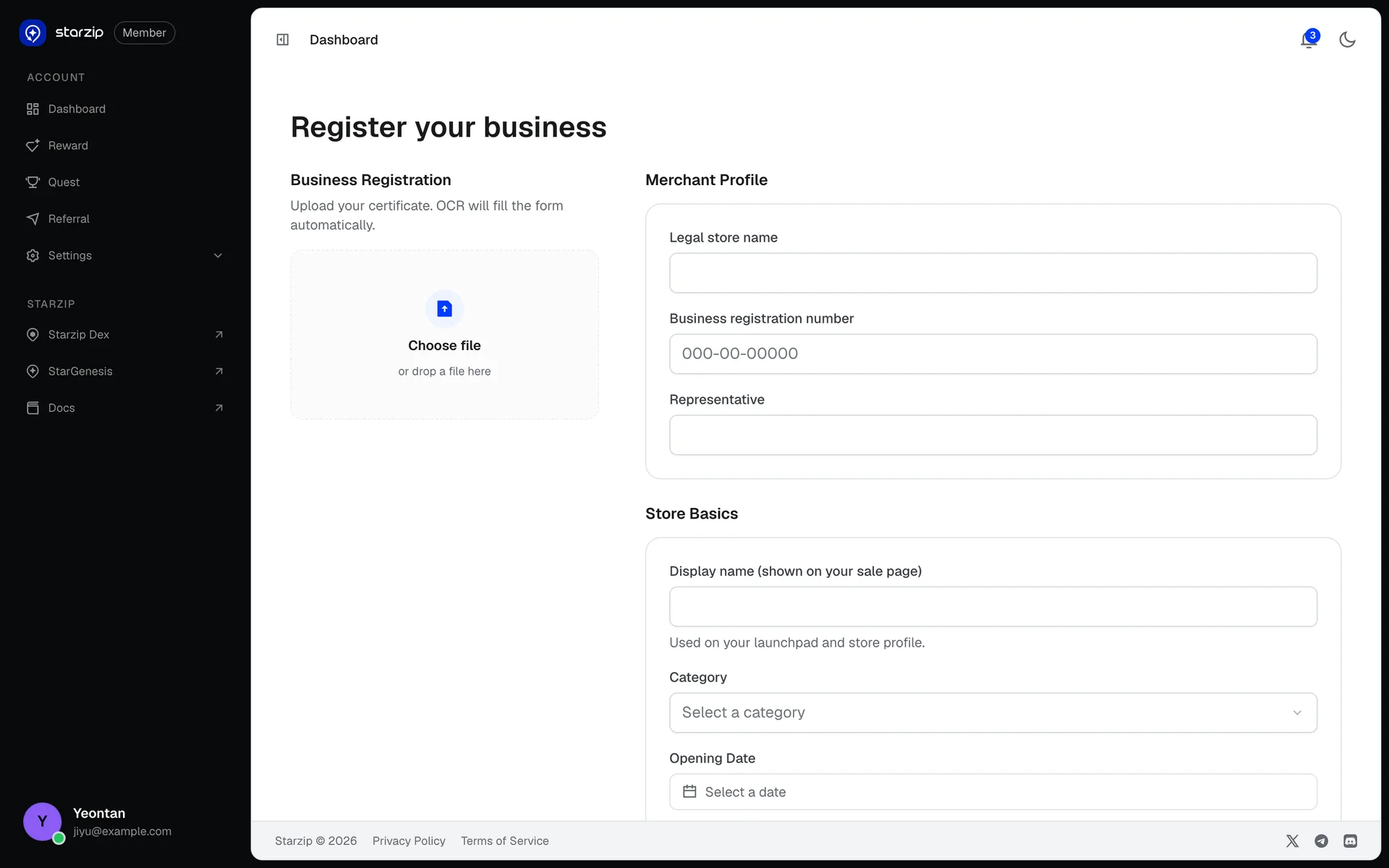
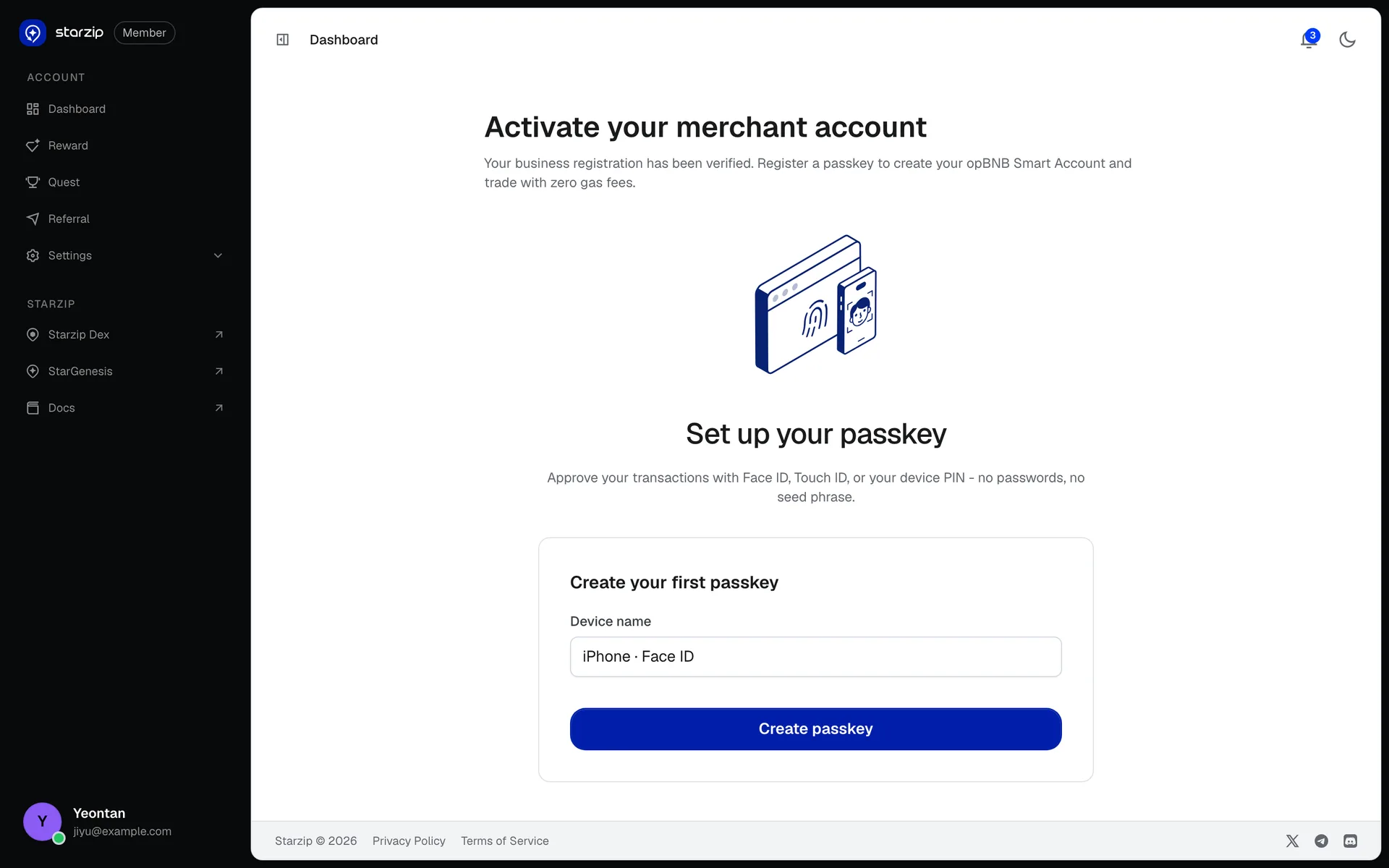
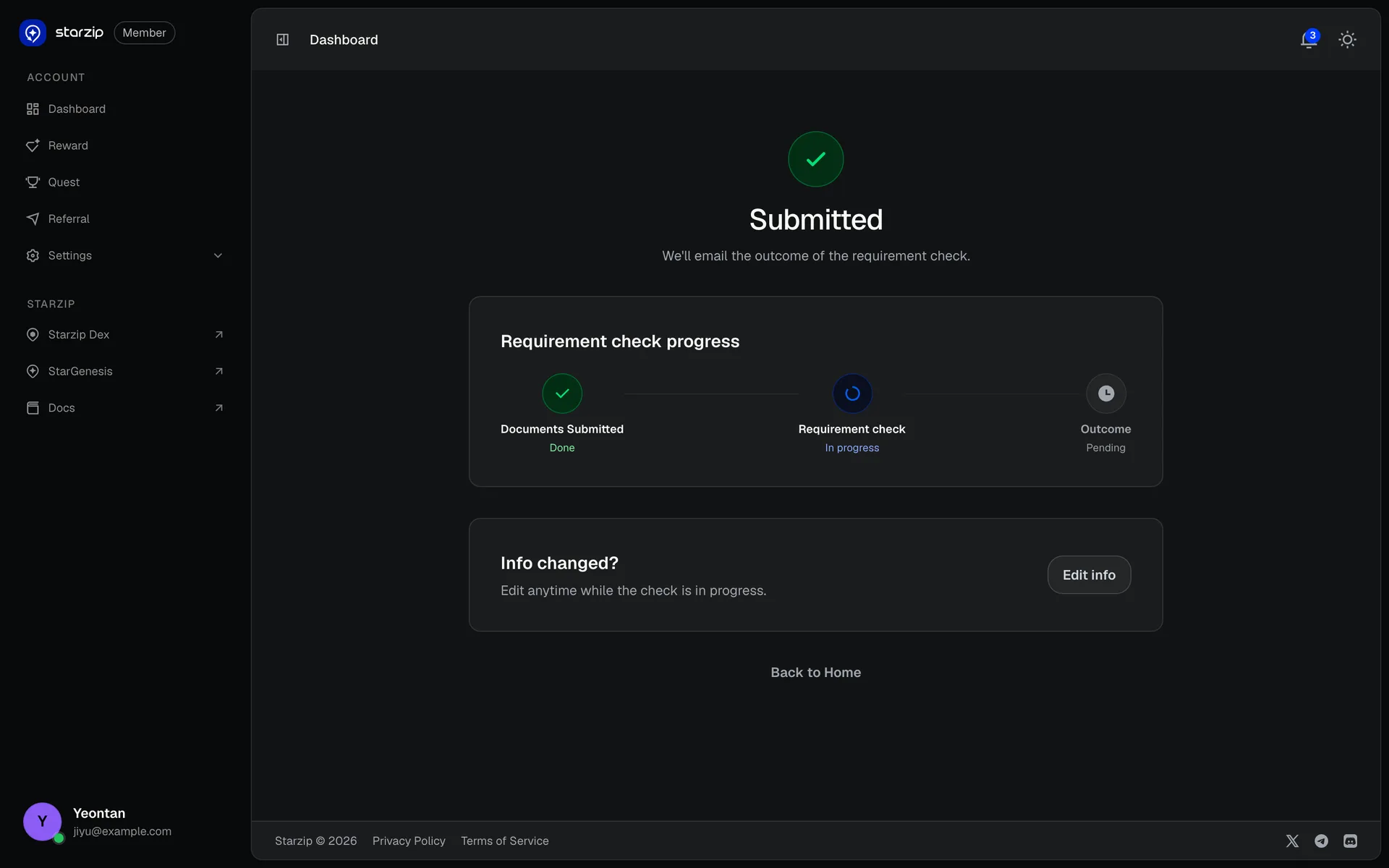
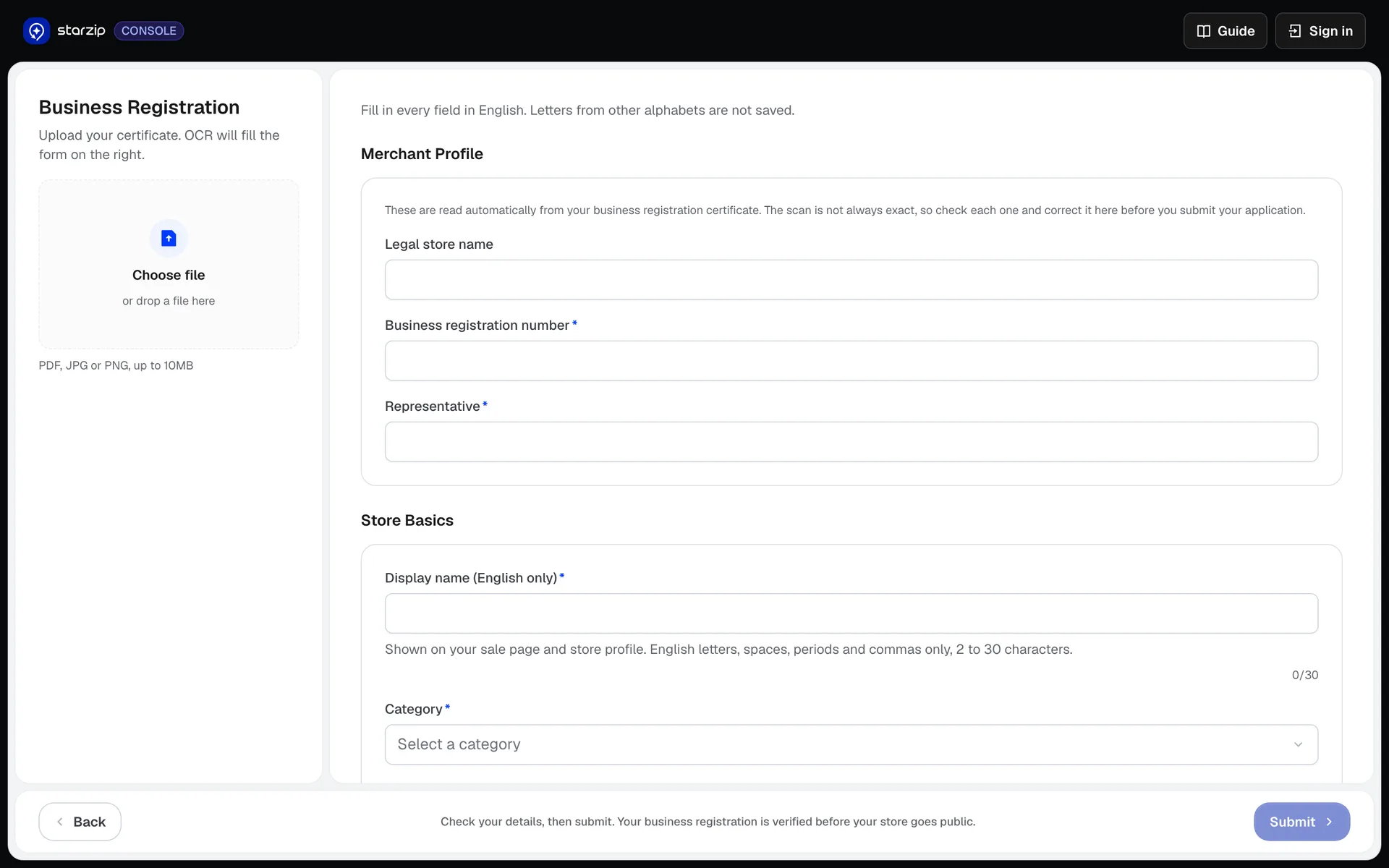
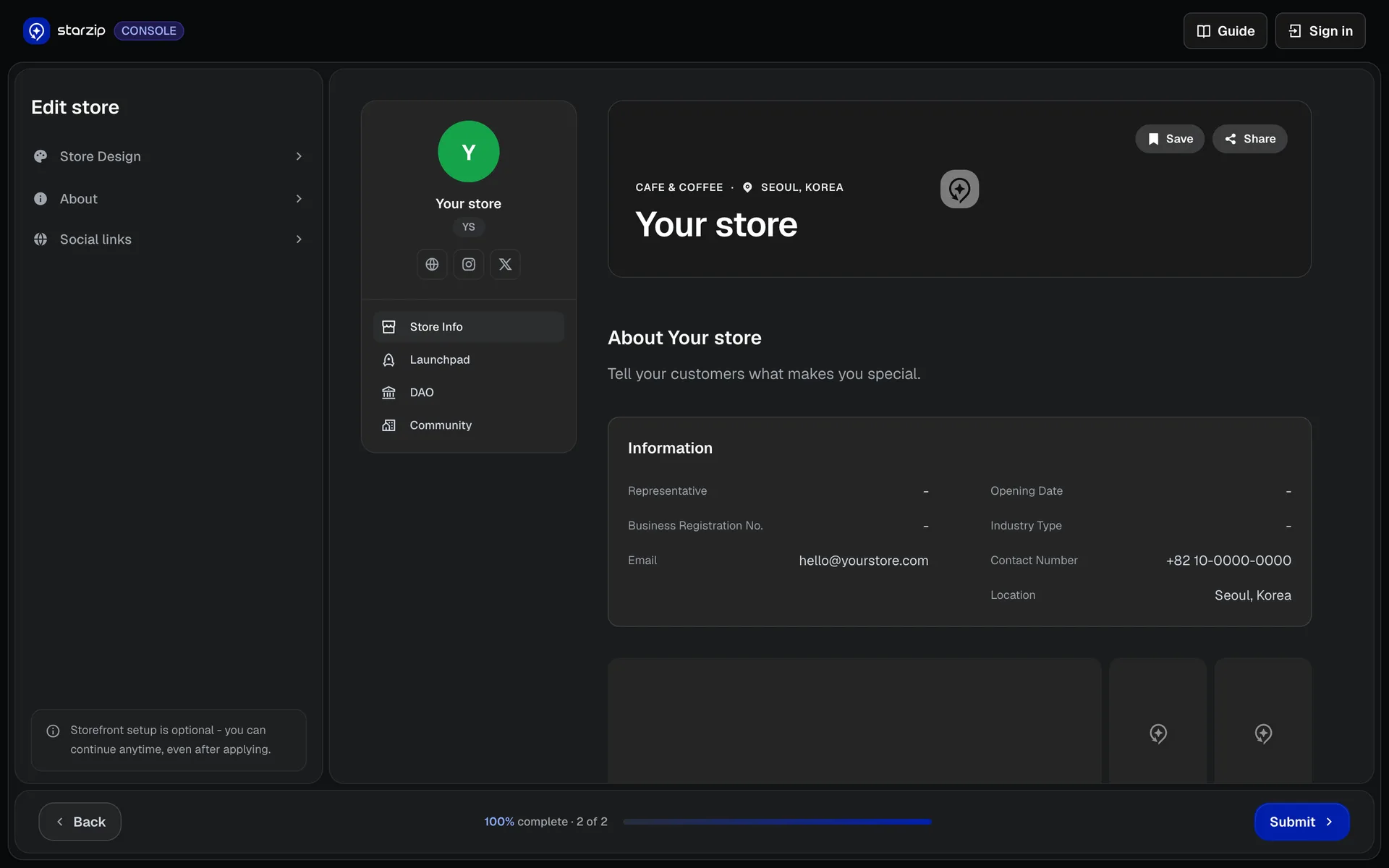
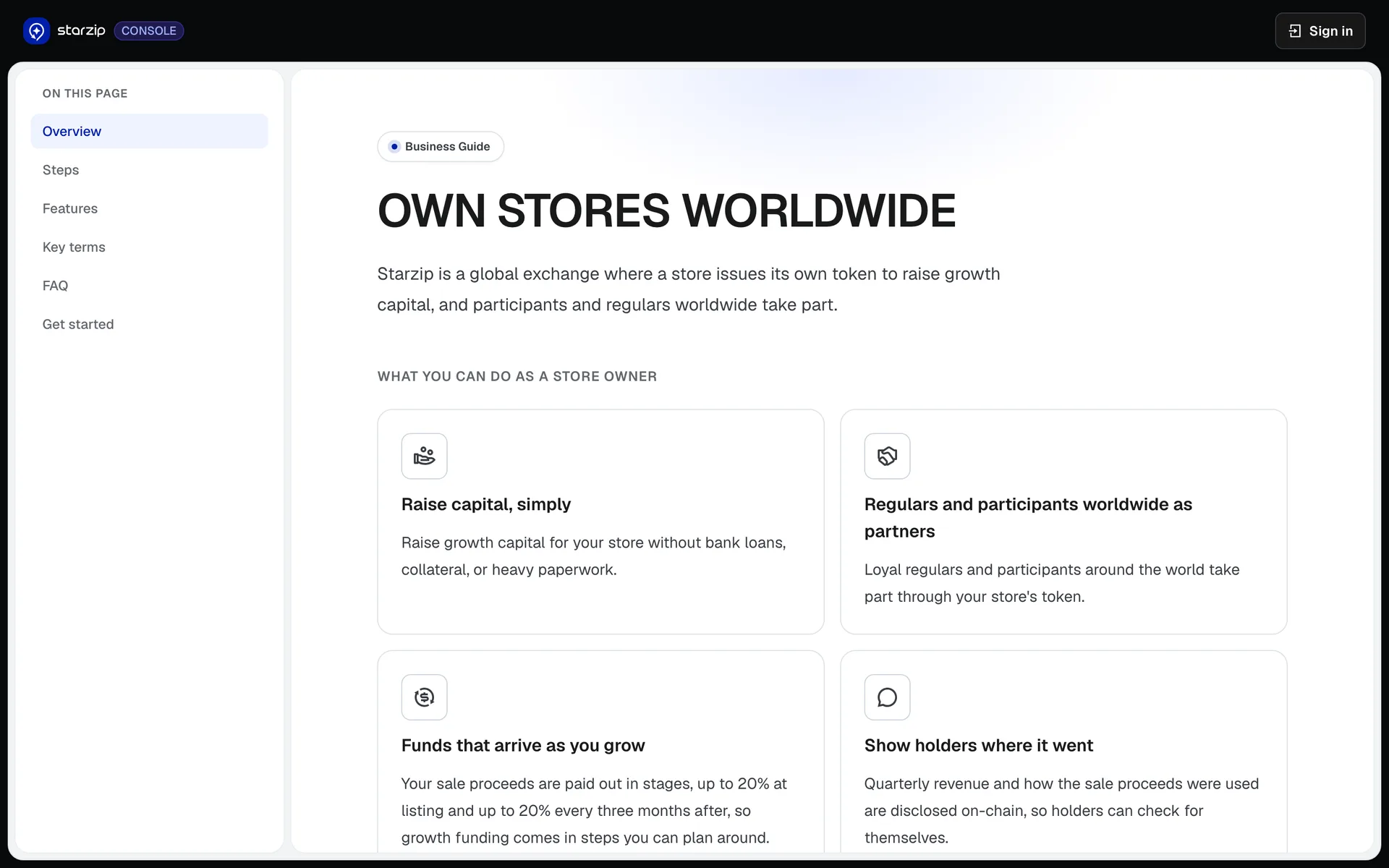
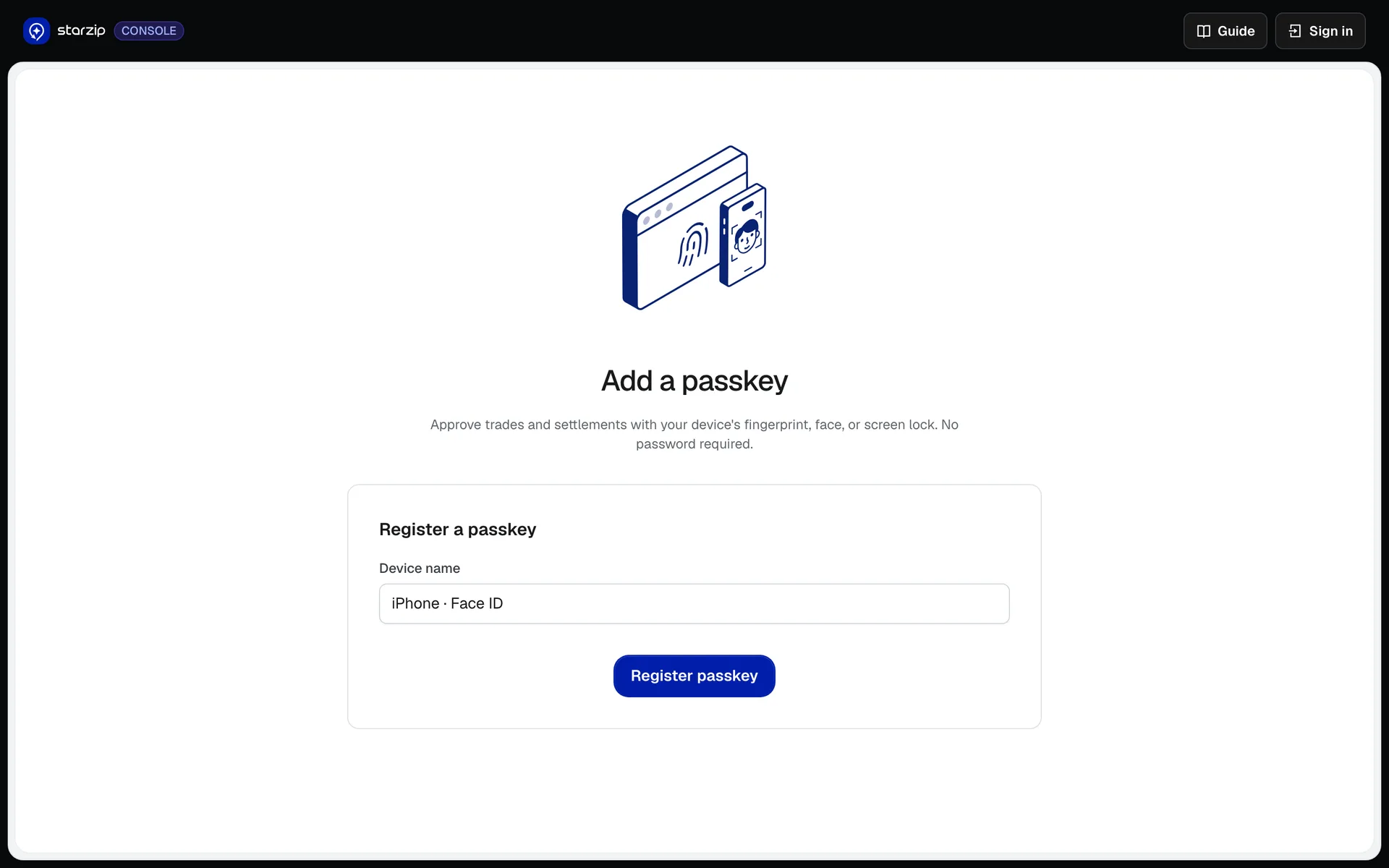
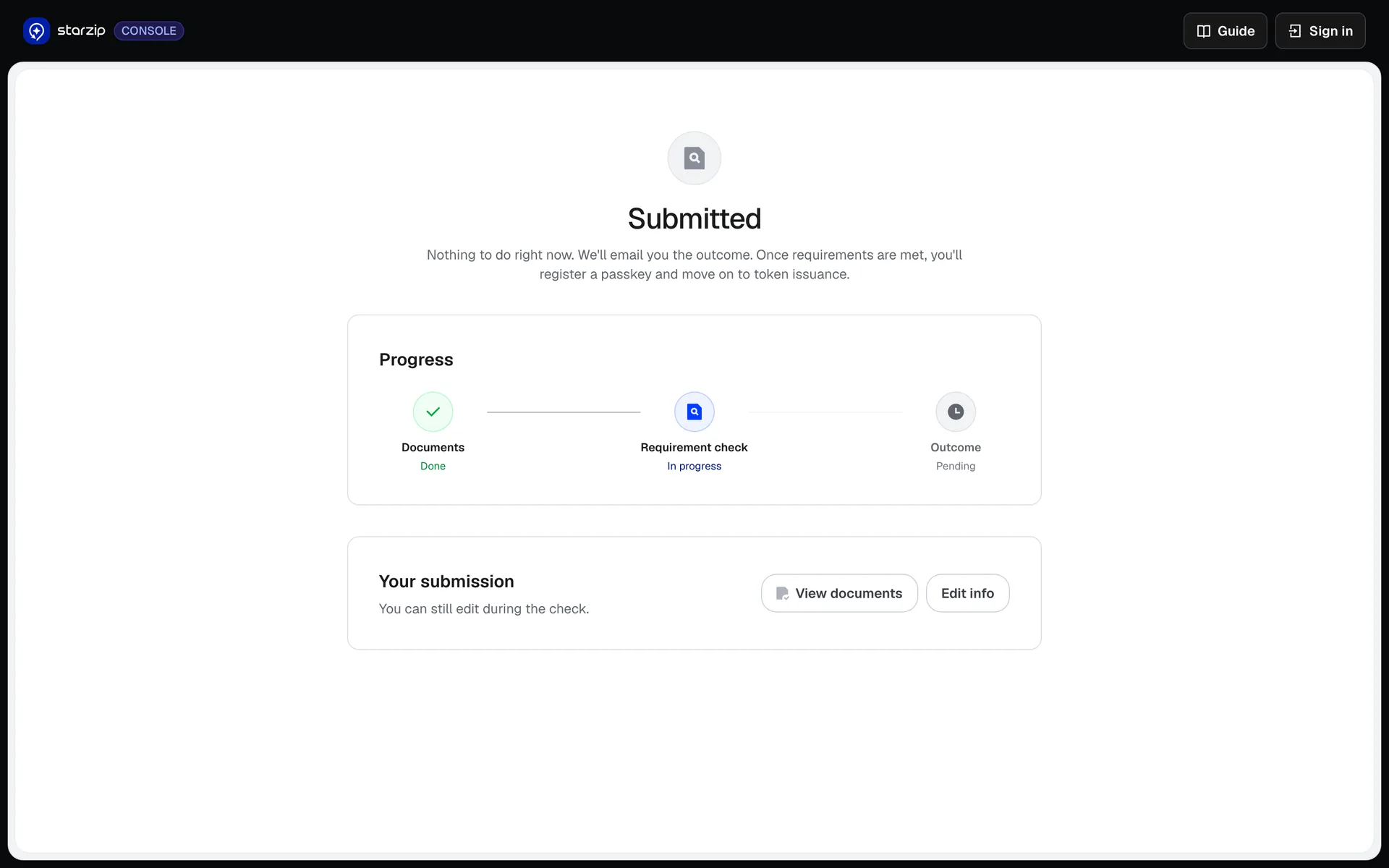
Dashboard - the passkey comes firstA passkey banner sits first under the greeting, then the account card, today's items and next steps. Connecting a wallet is just one of three next-step cards.Register a business - upload and OCR fills itCertificate upload on the left, merchant profile and store basics on the right. It says up front that OCR fills the form, so the many empty fields do not read as typing work.Activate merchant account - passkey after reviewThis screen appears only after the business registration is verified. The gas-free smart account is created from this passkey, so it asks for one device name and one tap.Submitted - still editable during reviewThree steps - documents, requirement check, outcome - and it sits on the second. An 'info changed?' card keeps editing open during the check, so submitting does not lock the form.Connect wallet - four reasons, one skipFour reasons a wallet is needed - NFTs, holdings, what's next, trading - with 'skip for now' underneath. The wallet is deferred to a choice rather than an entrance.Login - email and social, no walletEmail and password plus Google and Apple, nothing else. No connect-wallet button on the login screen is the premise of this project. The left panel is shared with sign-up.Notifications - split by trades, security, activityA filled order, a new-device sign-in and a deposit sit under today; an order cancelled by a trading halt and a reward under this week. Three tabs split the kinds, and unread items carry a dot.Passkey setup - no password, no seedOne illustration, two sentences, one device-name field. It says transactions are approved with Face ID, Touch ID or the device PIN, and that there is no password and no seed phrase.Quest list - onboarding first, in orderProgress and a start-next button on top, then the onboarding quests as a vertical list. Done ones are greyed out, and items with a verification condition state it inline.Quest cards - tabs and status badgesThe same quests rebuilt as a card grid. All, onboarding, beta and daily tabs appear, and each card carries a completed, open or in-progress badge, so status reads before the title.Referral - one code, three stepsInvite code and link at the top with copy buttons, then two cards counting friends joined and Dust earned. The three-step how-it-works sits below as a diagram.Sign-ups with my codeThe list behind 'view all' on the referral screen. Three columns - member, joined, earned - and a name search, nothing more; it exists only to confirm a referral actually landed.Reward - starting with what Dust isThe total Dust card carries a 'what is Dust' note, so the number and its meaning are read in one place. Below, the last 30 days split by source - quest, referral, daily, event - as bars.Reward activity - a table with source badgesA four-column table - event, source, date, amount. Source is a coloured badge (quest, referral, onboarding, trade, daily, limited), so where it came from reads before how much.Settings profile - a button only where editableAvatar, display name, email, bio. Email carries a verified badge and no edit button, so what can be changed is told by whether a button is there. Account info below: UID, sign-up method, member since.Sign-up - Google and Apple first, email afterGoogle and Apple first, continue-with-email as the primary button under a divider. It shares the left panel with login, and the wallet is not asked for yet.Application step 1 - documents beside the formThe member portal's business form rebuilt inside the console. An English-only notice, required marks and character limits are added, and a bottom bar pins back and submit.Application step 2 - storefront, optionalStore design, about and social links on the left, a live storefront preview on the right. A note pins that storefront setup is optional, so the application does not stall here.Business guide - read before applyingA table of contents on the left - overview, steps, features, key terms, FAQ - and four cards on what a store owner can do. The console's guide button lands here.Passkey after applying - for approvalsSame structure as the member passkey screen, but the copy now reads 'approve trades and settlements'. For a store owner the passkey is a signing device, not a login, and the sentence says so.Application submitted - says what comes nextThe same three steps as the member portal's submitted screen, but it says there is nothing to do now and names what follows - passkey, then token issuance. A view-documents button is added.